Overview
Stores can collect various updates from Mitrecom, including product, promotion, FLC, supplier updates, electronic invoices, and images.
The process involves two main steps: collecting updates to a PC and processing them into the Sympac system.
It is recommended to perform updates at least twice weekly, ideally before warehouse orders.
To collect Mitre 10 Updates follow these steps
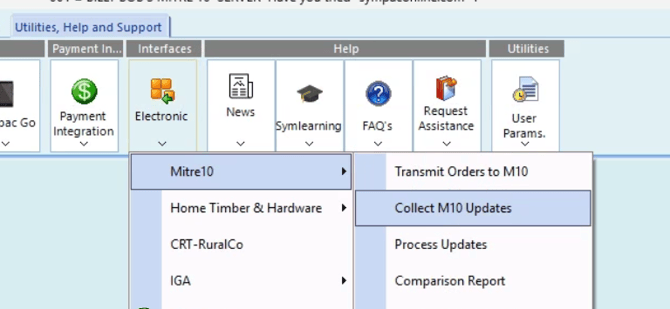
- On the menu go to Utilities, Help and Support
- Select Mitre 10
- Select Collect M10 Updates
-
In the Collect M10 Updates window, click the Collect button.
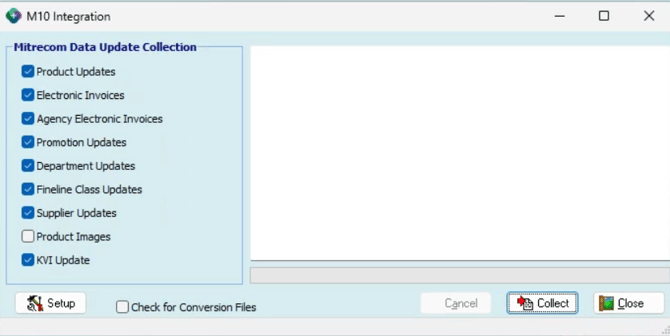
- The system will automatically download all available updates from Mitrecom (e.g., Product Updates, Promotion Updates, Supplier Updates, etc. ). Note: Full product files are not queued by default unless specifically requested
-
Monitor the Download Process:
- A connection message will display, followed by a list of files being received.
- Wait for the process to complete. The final step will show the total downloaded files, and the Cancel button will be greyed out.
-
Finish the Collection Process:
-
Once all updates have been collected, press Close to finish the program.
-
Things to note:
- You do not need to select specific updates; all available updates will be downloaded.
- Full product files are not queued by default unless requested.
- Clicking “Collect” initiates the download, with a connection message displayed during the process.
- The final step shows the total number of files downloaded, and the process ends with a "Close" option.
You can find more detailed instructions on symlearning together with video based tutorials and quick reference guides to download.
Follow this link and login to access our IHG/Mitre 10 Specific CoursesWe have a variety of microlearning courses which are perfect for refresher/upskill training as well as comprehensive full course with certifications!