These are the basic steps to follow send warehouse orders and receive confirmations.
Transmitting Orders to Mitre 10
- Access the main screen of Sympac and navigate to Utilities > Help & Support > Electronic > Mitre 10 > Transmit Orders to M10.
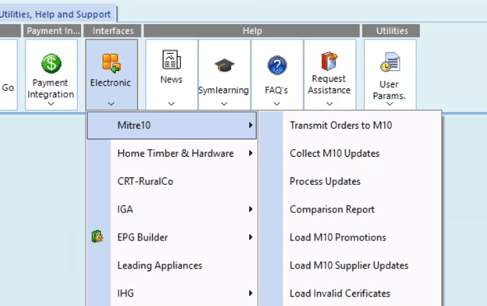
- Enter your Purchase Order number in the 'Starting Purchase Order' field.
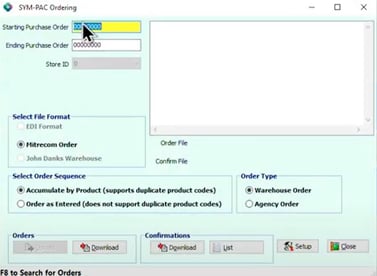
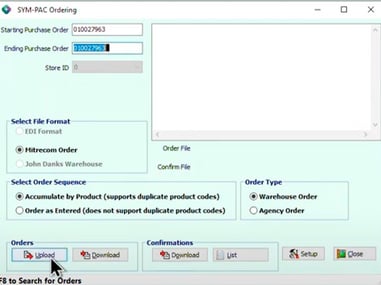
- The 'Ending Purchase Order' field will auto-populate; click the "Upload" button to begin transmission.
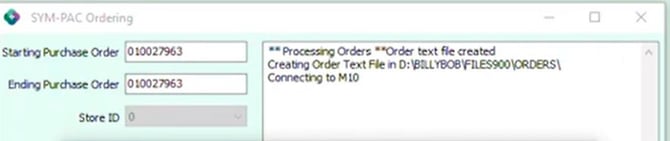
- The screen will display Processing Orders during transmission, and you can close the screen once complete.
Next, let's work through receiving Order Confirmations from Mitre 10
- After transmission, check Mitrecom or the Extranet for order status.
- Return to Utilities > Mitre 10 > Transmit Orders to M10 to initiate confirmation download.
- Select "DOWNLOAD" under the confirmations section to view available confirmations.
- Choose the relevant confirmation and select "print confirmation" to generate a report.
- Review comments for discrepancies, which the system will automatically adjust; print the report for your records.
- After printing, delete the confirmation to avoid confusion with unprinted confirmations.
Here are a few things to note:
- It is recommended to print confirmations and share them with supervisory or inventory teams.
- Deleting confirmations after printing helps maintain a clear confirmation list.
- Agency orders can be sent using the same steps, selecting "Agency" instead of "Warehouse" for specific suppliers like Dulux and Wattyl.
You can find more detailed instructions on symlearning together with video based tutorials and quick reference guides to download.
Follow this link and login to access our Mitre 10 / IHG CoursesWe have a variety of microlearning courses which are perfect for refresher/upskill training as well as comprehensive full course with certifications!